Chapter 3 · Modifier Reference
3.13Tnpix Tear
The Tnpix Tear modifier lets the cloth come apart under load. The mesh is split where the fabric is pulled past its limit, so a caught hem rips instead of stretching forever. The cloth can tear inside a painted region, anywhere an edge stretches too far, or where a closed shell bursts under pressure.
Location: Modify panel ▸ Modifier List ▸ Tnpix Tear
Interface
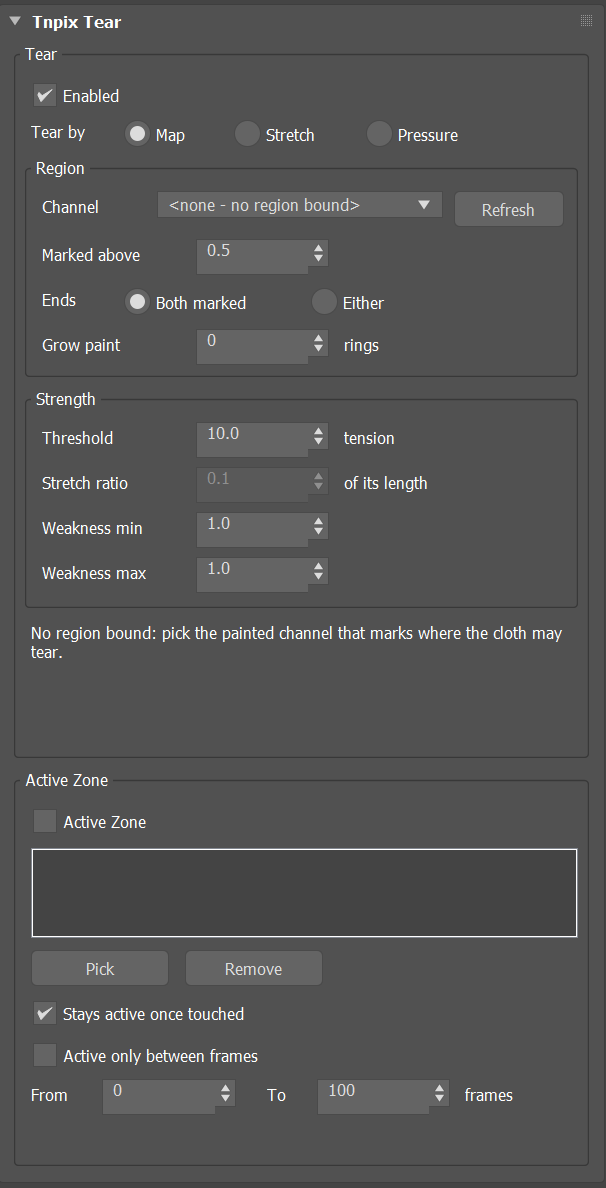
Tnpix Tear rollout
Tear group
- Enabled Default on
- Turns tearing off without removing the modifier; the cloth simulates whole.
- Tear by Default Map
-
Map Tears only inside the painted channel, where the pull in the cloth exceeds the Threshold. Stretch Tears anywhere an edge gets longer than the Stretch ratio allows. No paint is needed; a channel only grades the weakness, and Marked above is not used. Pressure Bursts the painted region when the air pressure held by a Tnpix Volume on the same stack exceeds the Threshold.
Region group
- Channel / Refresh
- The painted channel that marks where the cloth may tear. Map and Pressure need one; until it is chosen the status line reads that no region is bound.
- Marked above Default 0.5
- A point painted at or above this weight may tear; below it the cloth stays whole.
- Ends Default Both marked
- Both marked: both points of an edge must be painted for it to open. Either: one painted point is enough, so the cloth tears more readily.
- Grow paint Default 0
- Every point within this many edges of a painted point counts as painted, from 0 to 8 rings. 1 matches the faces the paint colours in the viewport; 0 uses the painted points alone.
Strength group
- Threshold Default 10.0
- How strong a seam is, for Map and Pressure. Map: the pull an edge can take before it opens. Pressure: the air pressure at which the painted region bursts. Higher is stronger; lower tears sooner. The status line shows the strongest pull reached: type a number just below it to tear there. Not used by Stretch.
- Stretch ratio Default 0.1
- For Stretch: how much longer an edge may get before it tears, as a part of its own length. 0.1 tears at 10 percent longer, 0.5 at one and a half times its length, 1 at twice its length. Smaller tears sooner and more. The status line shows how much the most stretched edge grew: type a number below it to tear there.
- Weakness min / Weakness max Default 1.0 / 1.0
- Multiply the pull (Map) or the stretch (Stretch) of each marked point. Every point has its own weakness between the two: its paint sets how far towards Weakness max it may reach (the lightest marked paint stays at Weakness min, full paint may reach Weakness max), and a fixed share of its own spreads the points over that span, so a painted region tears point by point instead of all at once. The spread is the same on every play and every machine. Above 1 the region tears sooner, below 1 later; both at 1.0 means the paint only marks the region. Under Stretch, the channel's weight grades the weakness and unpainted points take Weakness min. Range 0.01 to 10.
- Status line
- Before you play: how many points are marked and how many welds can tear, and the Substeps and Iterations the Threshold was typed at. After: how much tore, and the strongest pull (or pressure, or stretch) reached against the limit.
The Threshold is compared with a force in the solve, and that force depends on the Solver's Substeps and Iterations. The panel remembers the pair the Threshold was typed at and tells you when the Solver runs at another pair; set the Threshold again at the new pair.
Active Zone group
Lets the cloth tear only where a zone reaches. Set the Threshold or the Stretch ratio low enough to tear the cloth at once: nothing tears until the zone arrives, and then it tears only where the zone is. The tear settings above are used as they are.
- Active Zone Default off
- A point may tear only where the zone reaches it: anywhere inside a helper's Far radius. Off: the cloth tears wherever it is marked.
- Invert Default off
- Turns the zone round: a point may tear where the zone does NOT reach - anywhere beyond a helper's Near radius, since the Tear tears wherever its zone reaches at all (give the helper the same Near and Far for a sharp edge). With no helper picked, every marked point may tear. Outside the zone's time nothing tears.
- List / Pick / Remove
- The Influence Helpers that make the zone, as on Tnpix Forces.
- Stays active once touched Default on
- On: a point the zone has reached stays able to tear for the rest of the simulation, after the zone has moved on. Off: only the points inside the zone at that frame can tear. With Invert on, the box reads Stays protected once touched: a point the helper has covered (inside Near) never tears again - the helper is a shield.
- Active only between frames / From / To Default off, 0 to 100
- The zone works only in that frame range; outside it, it reaches no new point. Points it has already reached stay able to tear while Stays active once touched is on.
- Status line
- After a simulation: on the last simulated frame, how many marked points could tear, and how many seams have torn.
The zone is made of 3ds Max's own Influence Helpers (Create panel ▸ Helpers ▸ Standard ▸ Influence): full inside a helper's Near radius, fading along its Falloff (Linear, Smooth or Smoother) to nothing at its Far radius. Invert makes the zone everywhere except around the helper; a helper that is not On covers nothing. With several helpers, the largest value at a point counts. The zone follows the helper: move it, change Near, Far or Falloff, or animate any of them, and the zone follows frame by frame; changing it makes the cloth simulate again. The helper's Bias settings are not used.
Several Tears on one cloth
A cloth can carry more than one Tnpix Tear, for example a Map Tear for a seam and a Stretch Tear for the rest. Where they mark the same point, the stack order makes no difference:
- A Stretch Tear and a Map or Pressure Tear both test the point, each with its own numbers and weakness; whichever reaches its limit first tears it.
- Two Tears of the same kind: the one that tears the point first sets it, that is the lower Threshold or Stretch ratio, each divided by the point's weakness under that Tear (a Pressure Tear reads no weakness). A Map Tear and a Pressure Tear on the same point share one test, the Map Tear's.
- Active Zone: a point marked by both kinds uses the Map or Pressure Tear's zone when it has one, otherwise the Stretch Tear's.
Tearing is per object: each garment on a shared Solver carries its own regions and weakness paint, its Tears act on its own points only, and each marked point keeps the numbers of its own Tear. A Tnpix Soft Body in the Solver group keeps its flesh while a garment tears; one whose own mesh its Tear splits simulates as cloth (see Tnpix Soft Body). A few rules have one setting for the cloth, or for the whole Solver group on a shared Solver, taken from one Tear (a Map Tear before a Pressure Tear before a Stretch Tear, then the lowest Threshold): Tear by, which decides the rules a crack follows, Ends, and the Substeps and Iterations the Threshold was typed at. The weakness range runs from the lowest Weakness min to the highest Weakness max of the Tears. Draw the line a rip should follow with the Tear brush of Tnpix Channel: a stretch along its strokes is measured over at least a quarter of the cloth's own edge length there, so the very short edges the brush makes do not tear as dots.
Tnpix Threads grows warp and weft threads out of the tears; see Tnpix Threads in this chapter.