Chapter 3 · Modifier Reference
3.9Tnpix Channel
The Tnpix Channel modifier is where you paint. A channel is a named weight map from 0 to 1 over the vertices of the cloth. Materials, pins, a Preserve, stitches, tears, rigid pieces, Post Process and Wrap read channels by name. The modifier also carries the Tear brush, which cuts a freehand line into the cloth.
Location: Modify panel ▸ Modifier List ▸ Tnpix Channel (above Tnpix Garment)
To create and paint a channel:
- Add Tnpix Channel above Tnpix Garment. Make sure the object shows its mesh in the viewport (scrub a frame if needed), so the modifier has a mesh to paint.
- Type a name in the Name field, for example collar, and click Add.
- With the channel selected in the list, set Mode to Add and Value to 1, click Paint and paint the region in the viewport. Click Paint again to stop.
- Turn on Show Weights to see what you painted.
- On the modifier that should use the region (a material, a Pin, a Stitch...), choose the channel by name.
Sub-object levels
Channel Vertices and Channel Edges select components to weight; they never move them. Click, drag or use the selection buttons, then Apply to Selection writes the Value into the selected channel (an edge selection means the vertices it joins) and Remove Selection sets them back to 0.
A new channel from a selection. Add creates the channel carrying the current selection, if there is one: the Channel's own Vertices or Edges selection when you are in that level; otherwise a selection made below the Channel at a sub-object level - for example vertices, edges or polygons selected in an Edit Poly that is still in that level. Vertices left selected inside an object that is at its top level are not a selection and are not used, as for any 3ds Max modifier. With nothing selected, Add creates an empty channel to paint into.
Undo and redo. Every change of the Channel Vertices or Channel Edges selection — a click or a drag in the viewport, All, None, Invert, Shrink, Grow, Ring, Loop — and every channel edit — Add, Delete, Rename, Active, Live from stack, Apply to Selection, Remove Selection, Clear Channel, Mirror — is one step of 3ds Max's own undo (Ctrl+Z, Ctrl+Y, Edit ▸ Undo), named for the press. A press that changes nothing files no step. Undoing a channel's Delete brings back its tear-brush lines with it.
A Channel shared by several objects. All, None, Invert, Shrink, Grow, Ring and Loop act on every object's own selection. Mirror, Apply to Selection and painting refuse, with the reason: the weights belong to the modifier and are shared by every object it sits on.
Interface
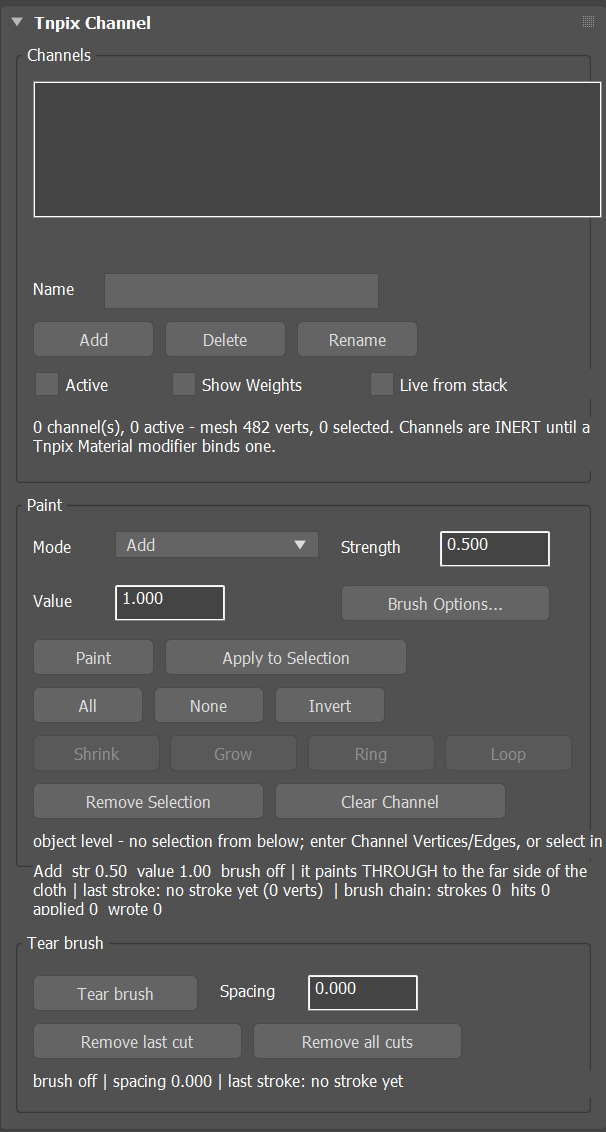
Tnpix Channel rollout
Channels group
- List
- Every channel on this modifier. Select one to paint it, rename it or check its state.
- Name / Add / Delete / Rename
- Type a name and click Add to create a channel. Delete removes the selected channel, its weights and the tear-brush lines drawn into it. Rename gives it a new name; everything bound to the old name follows.
- Active
- Shows whether the selected channel is on; clear it to turn that channel off without deleting it. A binding to an inactive channel does nothing, rather than falling back to something else.
- Show Weights
- Draws the selected channel's weights in the viewport, from dark blue (0) through yellow (0.5) to red (1). The weights are also drawn while you paint. They use their own map channel, never the object's vertex colours: an object with Vertex Paint keeps its colours, and they show again, exactly as before, when the weights go off.
- Live from stack Default off
- Reads the channel list from the modifiers below again, so channels added further down the stack appear here.
- Status line
- What the selected channel holds and what is bound to it. A channel that nothing binds changes nothing, and the line says so.
Paint group
- Mode
- How the brush changes the weights it touches: Add, Subtract, Replace or Smooth.
- Strength
- How strongly one stroke moves the weight towards the value.
- Value
- The weight a stroke paints towards: 1 is fully in the channel, 0 fully out.
- Brush Options...
- Opens the 3ds Max brush options: size, strength and falloff. With Mirror ticked there, a stroke on one side paints its mirror image too, across the axis and offset chosen in the brush options.
- Paint
- Starts painting on the selected channel. Click again to stop.
- Apply to Selection
- Writes the value into every selected vertex. If it cannot, it says why.
- All / None / Invert
- Select every vertex, no vertex, or swap the selection.
- Shrink / Grow / Ring / Loop
- Edit Poly's selection tools, in Channel Vertices and Channel Edges
(unavailable at the top level).
Loop and Ring follow the edges you see: a quad split by a hidden diagonal counts as the quad. On a triangle mesh, such as a Tnpix Garment remesh, there is no quad to follow, so Loop and Ring stop and the line under the buttons says why. In Channel Vertices, Loop and Ring need two neighbouring selected vertices to give the direction. The line under the buttons reports each press. Like All / None / Invert, a press changes the selection only; each one is a step of 3ds Max's undo.Shrink Deselects the outer layer of the selection. Grow Adds the neighbours of the selection along the mesh's edges. Ring Adds the parallel edges across each quad, until a border or a face that is not a quad. Loop Extends the selection along its edge loop: at a vertex with four edges it goes straight on; it stops at a border, a pole or a triangle area. - Remove Selection
- Sets every selected vertex back to 0 in this channel: the way out of a mistaken selection.
- Clear Channel
- Sets the whole channel back to 0. The selection is not changed.
- Mirror / side / Tolerance Default +X to -X, 0.1 in
- Copies the selected channel's weights from one side of the object to the other. The list says which side gives its weights: +X to -X, -X to +X, +Y to -Y, -Y to +Y, +Z to -Z or -Z to +Z. The plane runs through the middle of the object (the middle of its bounding box on that axis), in the object's own axes; each vertex on the giving side hands its weight to its twin — the vertex nearest its mirror image, if it is closer than Tolerance (a new modifier takes 0.1 inch in the scene's unit). A vertex with no twin keeps its weight, and the line under the buttons says how many there were. Mirror reads the positions of the frame on the timeline, after the tear-brush cuts. One undo step.
Tear brush group
- Tear brush
- Draw a line on the cloth. When you release, the mesh is cut along the line, and the vertices on the line receive the Value in the selected channel, so a Tnpix Tear bound to that channel opens exactly the line you drew. Draw again to add more lines; click the button again to stop. The line is shown while you drag, and a right-click cancels the stroke. A stroke that starts or ends off the cloth is cut out to the border on that side.
- Spacing
- The least distance between two cut points along the stroke, in scene units; it thins a dense stroke. 0 cuts at every mouse sample. On the first use it fills itself with the mesh's average edge length; type over it to change it.
- Remove last cut
- Removes the last line and its marks; the cloth is cut again with the lines that remain. Undoable.
- Remove all cuts
- Removes every line of this modifier and its marks; the original vertices keep the weights they had before. Undoable.
- Status line
- What the last stroke did, or why it was refused.
The cut lives in the modifier. It is made on the mesh that reaches the Channel modifier, whatever it is (a Plane with a Tnpix Garment below, an Editable Mesh, an Editable Poly), and the base object is never changed or converted. The lines are saved with the scene. The Tear brush refuses, with the reason, when no channel is selected, when the modifier is instanced on more than one object, or when no mesh has reached it yet.
Bindings are by name, never by position. Two materials cannot share one channel: point the second at a different one. If two Channel modifiers on the same stack carry the same channel name, the first wins and the panel warns you.