Chapter 3 · Modifier Reference
3.4Tnpix Forces
The Tnpix Forces modifier drives the cloth with 3ds Max's own space warps. Add a warp to the list and it acts during the simulation. The warp keeps its own settings and its own animation, so a keyframed Wind strength rises and falls in the cloth exactly as it does on the warp. Each cloth is pushed by its own Tnpix Forces, also when several cloths share one Tnpix Solver.
Location: Create the space warp (Create panel ▸ Space Warps ▸ Forces), then Modify panel ▸ Modifier List ▸ Tnpix Forces
Interface
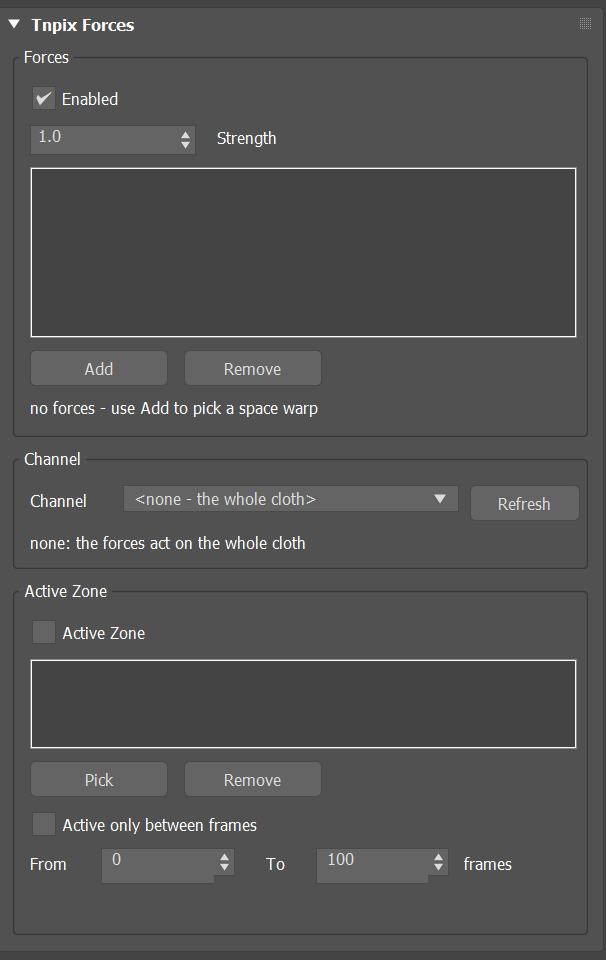
Tnpix Forces rollout
- Enabled Default on
- Turns every force in the list off at once, without removing any.
- Strength Default 1.0
- Scales every force in the list together. 1.0 applies each warp at its own strength; 2.0 doubles them; 0 silences them. Range −1000 to 1000.
- List
- The space warps that drive this cloth. Each row has a check box: clear it to mute that warp. A muted row contributes nothing, the same as removing it, and can be turned back on.
- Add
- Pick a space warp in the viewport (Wind, Gravity, Drag, Vortex, Motor, Push, PBomb or another) to add it to the list.
- Remove
- Takes the selected warp out of the list. The warp itself stays in the scene.
- Status line
- Reports what the list contributes.
Channel group
Limits every force in the list to a painted channel of this cloth (Tnpix Channel), such as a sleeve or a hem.
- Channel Default <none - the whole cloth>
- The channel the forces act through. Each point is pushed by its usual amount times its painted weight there: fully where the weight is 1, not at all where it is 0, in proportion between. <none - the whole cloth>: every point is pushed fully. A cloth that has no channel of this name is not pushed; the list then shows the name followed by [MISSING from this stack].
- Refresh
- Reads the channel list again, after a channel is added or renamed on the Tnpix Channel modifier.
- Status line
- After a simulation: how many points of the cloth the channel reaches, or that the cloth has no channel of that name and is not pushed.
With the Active Zone on as well, each point is pushed by its channel weight times the zone's value there.
Active Zone group
Limits every force in the list to a region of the scene, the zone.
- Active Zone Default off
- Each point of the cloth is pushed by its usual amount times the zone's value there: full inside Near, fading to nothing at Far, nothing outside. Off: the forces act everywhere.
- Invert Default off
- Turns the zone round: the forces push where the zone does NOT reach - fully outside Far, fading out towards Near, nothing inside Near. With several helpers, everywhere none of them reaches (the Invert on an Influence Helper turns round that one helper only). With no helper picked, every point is pushed. It works inside the zone's time, below.
- List / Pick / Remove
- The Influence Helpers that make the zone. Pick adds helpers from the viewport, several in a row; right-click, or press it again, to stop. Remove takes the selected helper out of the list; the helper stays in the scene. Each row shows the helper's Near, Far and Falloff.
- Active only between frames / From / To Default off, 0 to 100
- The zone works only from the From frame to the To frame, as the timeline shows them; outside that range it reaches nothing, so these forces push nothing. Off: the zone works the whole time.
- Status line
- After a simulation: how many points of the cloth the zone reached on the last simulated frame.
The zone is made of 3ds Max's own Influence Helpers (Create panel ▸ Helpers ▸ Standard ▸ Influence): full inside a helper's Near radius, fading along its Falloff (Linear, Smooth or Smoother) to nothing at its Far radius. Invert makes the zone everywhere except around the helper; a helper that is not On covers nothing. With several helpers, the largest value at a point counts. The zone follows the helper: move it, change Near, Far or Falloff, or animate any of them, and the zone follows frame by frame; changing it makes the cloth simulate again. The helper's Bias settings are not used.
Working with Wind
- Strength 1 is about one g. A Wind at Strength 1.0 pushes about as hard as Earth gravity pulls, and the response is linear from there. Scenes that needed a very high Wind strength to be felt should be turned back down.
- Frequency needs Turbulence. In 3ds Max's Wind, Frequency acts only when Turbulence is above zero.
- Wind from MAXScript. A Wind created from the interface starts with Decay, Turbulence and Frequency at 0; created from MAXScript they start at 1.0. With Decay at 1.0 the wind dies off within a few units of the warp, so set Decay yourself when you create a Wind by script.
- Velocity. Each warp is evaluated at every cloth point with that point's own velocity, as 3ds Max particle systems do, so a velocity-dependent warp such as Drag acts as damping on the moving cloth.
The Forces tool on the TenPix toolbar lists every Tnpix Forces modifier in the scene with the dials of its warps in one window. See Chapter 4.