Chapter 2 · Concepts
2.4The TenPix Graph
The TenPix Graph shows every Solver group of the scene in one window and edits it there: every setting of every TenPix modifier, the modifiers each object carries and the objects a Solver group holds. It reads the modifier stacks as they are and writes into them; it keeps nothing of its own, so the stacks remain the scene and the graph adds nothing to the saved file.
Location: Select a cloth object ▸ Modify panel ▸ Tnpix Solver ▸ Graph
The graph opens on the Solver group of the Solver it was opened from; the other Solver groups stay closed. It opens in a window of its own, in the middle of 3ds Max: drag any edge or corner of the window to size it, up to the whole screen, and the graph fills it at every size. On 3ds Max 2025, 2026 and 2027 the window can also be docked: drag it by its title bar onto a side of the 3ds Max main window, like other docked panels, and drag it out again to float it. On 3ds Max 2024 it stays a window of its own.
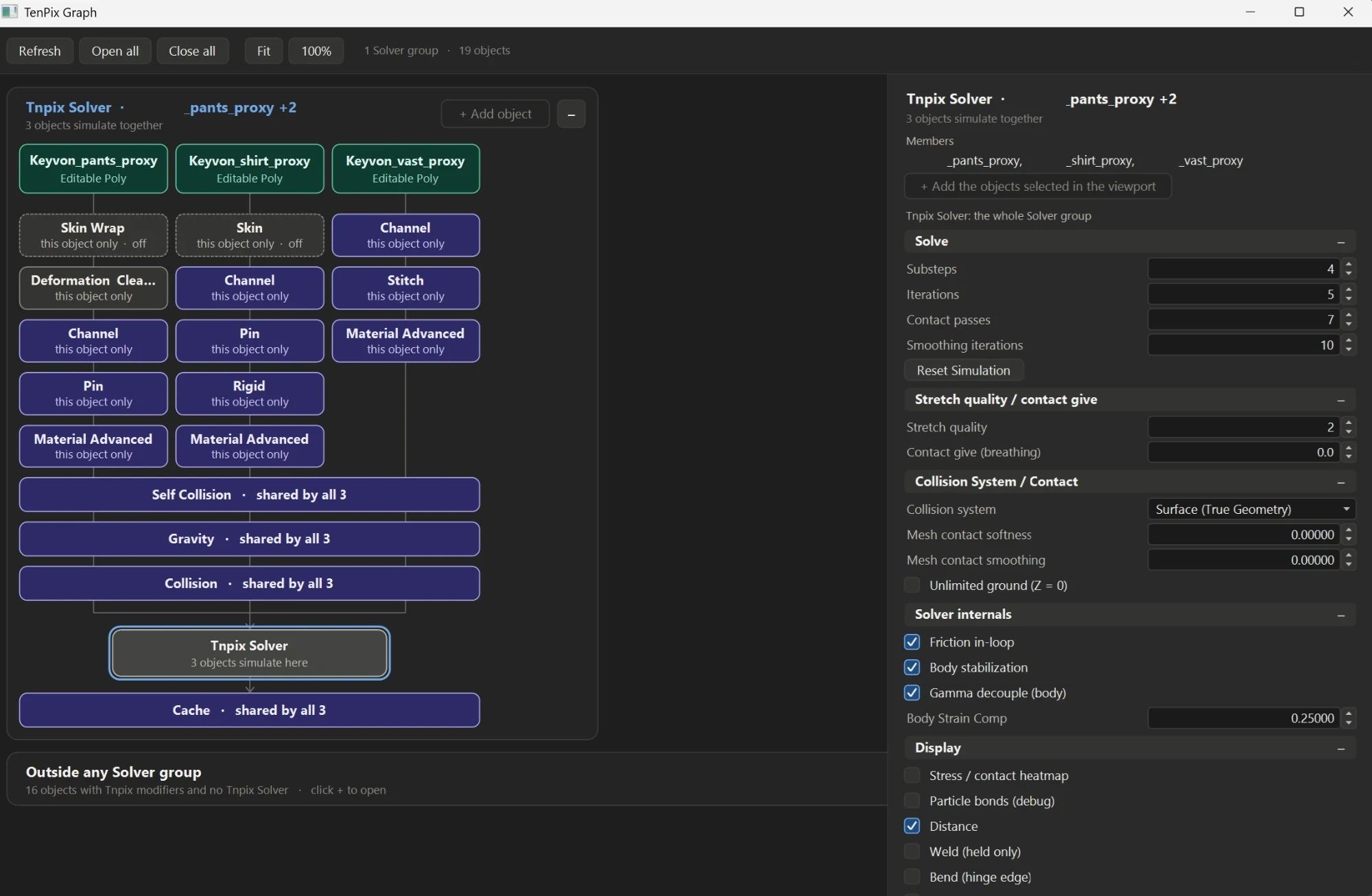
Reading the graph
- Each Solver group is a box headed by its Solver and its first object, with the number of objects simulated together. Its + / − button opens and closes it; Open all and Close all at the top do the same for every Solver group.
- Inside an open Solver group each object is a column. The modifiers only that object carries sit under it; a modifier some objects share spans their columns (shared by 2), and one the whole Solver group shares is a bar across the group (shared by all 4). Below them comes the Tnpix Solver, then what sits above it in the stack, such as Tnpix Post Process.
- Objects are teal, TenPix modifiers purple and other 3ds Max modifiers grey. A modifier switched off in its stack is drawn dashed.
- Objects that carry TenPix modifiers but no Tnpix Solver are drawn last, under Outside any Solver group.
- The window follows the scene: a modifier added or deleted in the Modify panel, a renamed object, an undo or a redo shows in it within a moment. Refresh on the top bar draws it again at once.
Moving around the graph
- Zoom
- The mouse wheel zooms in and out at the pointer, from 25% to 200%. Fit on the top bar, or the Z key, zooms so that the open Solver groups fit the window, at 100% at most; the percentage button beside it returns to 100%.
- Scroll
- Drag on an empty part of the graph, or drag with the middle mouse button, to move the view. The mouse wheel with Shift, or a sideways wheel, scrolls sideways. Over the settings on the right, the wheel scrolls the settings.
Editing settings
Click a modifier's box. The right side lists every setting of its panel, with the panel's own names, groups, ranges and units, and greys a setting where the panel greys it; each group opens and closes with its + / −. A change made there shows on the Modify panel at once, and a change made on the panel shows in the graph. A value the panel would refuse is refused here too, and the window says why.
- Numbers
- Click the value to type a new one; Enter or Tab keeps it, Esc cancels. Drag the arrows beside it up or down to change it continuously: hold Ctrl for ten times the step, Alt for a tenth. A click on an arrow moves one step, the step the panel's own spinner takes. A right-click on the arrows sets the value to 0, or to its lowest value where 0 is out of its range, as on a 3ds Max spinner.
- Check boxes
- A click switches the box.
- Lists and channels
- A click opens the choices. A channel list offers the channels on the object's stack, as the panel does.
- Buttons
- The Solver's settings carry Reset Simulation, as its panel does: it clears the stored frames, and the frame on screen is simulated again at once.
- An object
- Pick, then click the object in a viewport. Clear empties the slot.
- Object lists
- Collision's colliders, Forces' space warps, Stitch's targets, Wrap's proxies and the Active Zone helpers: + Pick object, then click objects in a viewport one after another; right-click or Esc stops. ✕ removes a row, and a Forces row carries its on / off tick. Click a row to edit that entry's own settings, such as a collider's thickness and friction.
- Garments
- Self Collision's garments are the objects that carry it. Click one to edit its layer, friction and thickness; an emptied friction or thickness inherits again. The arrows of an inherited value step from the value it inherits.
- File names
- ... opens the file dialog.
A shared modifier is one modifier: a change reaches every object that shares it, as on the panel. The settings of 3ds Max's own modifiers stay in the Modify panel, and a channel is painted on the Tnpix Channel panel.
Adding and removing
- Add a modifier
- Click an object's box. Under Add a modifier choose the type, tick any other objects of the Solver group that should share it, and press Add. Every TenPix modifier is offered. The new modifier is one modifier shared by those objects, placed where the stack takes it: just below the Tnpix Solver; just above it for Post Process, Cache, Threads and Wrap; a Garment below every TenPix modifier; a Solver below the modifiers that work on a Solver's result. An object carries one Solver, so the Solver is not offered for an object that already has one.
- The right-click menu
- Right-click in the graph. The menu names the Solver group under the pointer and offers Add to all N objects, Add to the object under the pointer and, with objects of the Solver group selected in a viewport, Add to the N selected objects; each opens the list of TenPix modifiers. The modifier is added once, shared by the objects it goes on, in the place Add puts it. The menu also carries + Add the objects selected in the viewport (see Add object below).
- Remove
- Right-click a modifier's box, or the Solver's, and choose to remove it from the object under the pointer or from all the objects that share it. Or click the box and press Delete: a modifier on one object is removed at once, and for a shared one a menu asks for the object, or all of them. Remove... in the modifier's settings does the same.
- Make unique
- On a shared modifier, Make unique... gives the chosen object its own copy, with the same values; the others go on sharing theirs.
- Add object
- Select objects in a viewport, then press + Add object on the Solver group's header (or + Add the objects selected in the viewport on the Solver's box or in the right-click menu). Each object takes the Solver group's shared modifiers and its Solver, and joins the Solver group. The button is unavailable while no selected object can join: one already in this Solver group, one in another, or one the Solver cannot simulate.
Moving a modifier
Drag a modifier's box up or down to move it in the stack. While you drag, a line shows where it will land and a note under the pointer says where, or why it cannot land there; release the mouse button to move it, or press Esc or right-click to leave it where it was. A moved modifier keeps everything it holds, such as a Tnpix Channel's painted weights, as it does when you drag it in the Modify panel.
- A modifier moves within the stacks of the objects that carry it. A shared modifier moves in every one of them and lands next to boxes that the same objects share. Dropping it on another object's column would add it to that object: use Add for that.
- The graph draws each stack from the bottom up. A TenPix modifier that feeds the Solver stays above the Solver in the graph; Post Process, Cache, Threads and Wrap, which work on the Solver's result, stay below it. Other 3ds Max modifiers can go anywhere in their column.
- The Solver and the objects do not move.
Undo and Redo
Every change made in the graph is one entry in 3ds Max's own undo list, the list the viewport and the Modify panel use: Edit ▸ Undo, the toolbar's undo arrows and Ctrl+Z / Ctrl+Y take it back and forth, and Ctrl+Z / Ctrl+Y also work while the graph has the keyboard. Dragging a value is one entry however far it moves; typing the value a setting already holds adds none. Adding, removing, moving and making a modifier unique, and adding objects to a Solver group, are one entry each.
While the graph has the keyboard, 3ds Max's own keyboard shortcuts wait, so that the graph's keys reach it: Ctrl+Z and Ctrl+Y, Z for Fit, Delete for the picked modifier, and Esc to stop picking or to cancel a drag. They work again as soon as the keyboard goes elsewhere, for example after a click in a viewport.