Chapter 3 · Modifier Reference
3.6Tnpix Self Collision
The Tnpix Self Collision modifier stops cloth passing through itself and makes the garments of one Solver group collide with each other. It also orders layered garments, so that an inner garment holds its shape while an outer one moves around it. A new Self Collision modifier starts switched on; one saved in a scene keeps its own setting.
Location: Modify panel ▸ Modifier List ▸ Tnpix Self Collision
Self collision is the heaviest part of the solve. Add it once the rest of the garment behaves, and switch it off when you want to know what a scene costs without it.
Interface
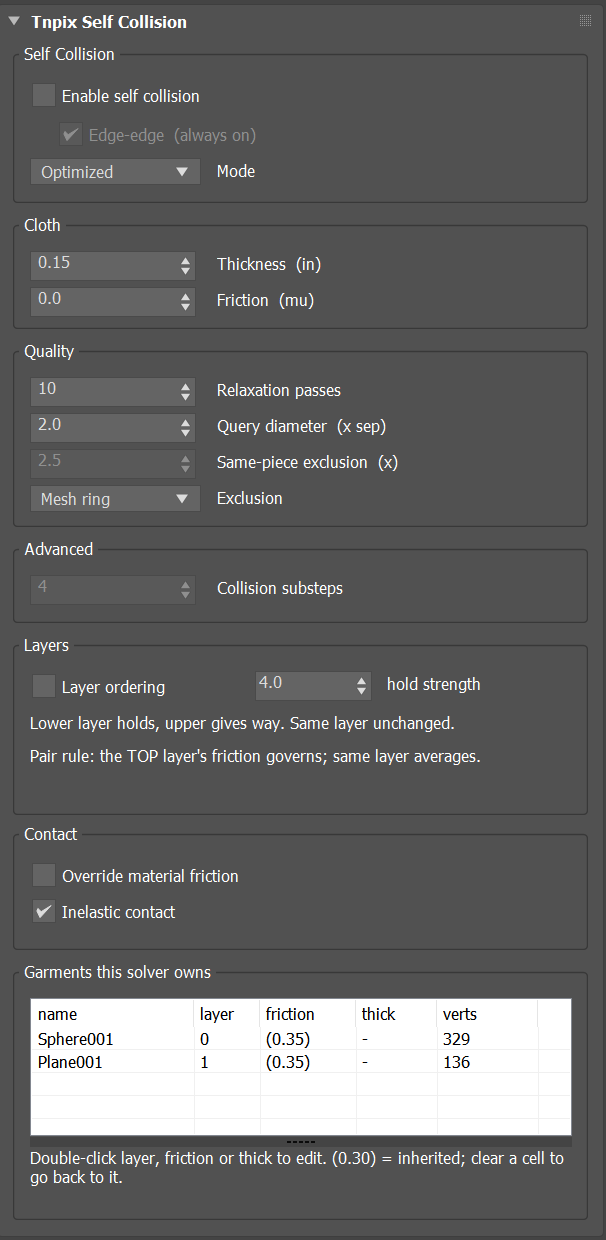
Tnpix Self Collision rollout
Self Collision group
- Enable self collision Default on
- Stops the cloth passing through itself. Turning it on also turns on Edge-edge.
- Edge-edge Default on
- Catches the cases where two edges cross without either one poking through a face, typically thin folds and creases. It costs a little more; leave it on unless you are comparing. Under the Optimized and Advanced modes it is always on and the check box is unavailable.
- Mode Default Optimized
- Which self-collision engine runs.
Layer ordering works under every mode.Basic Measures the gaps between cloth surfaces once at the start of each step and works from that picture. Optimized Basic plus recovery: where the cloth has already cut through itself, it remembers which side it came from and pushes it back there. Always uses Edge-edge. Advanced Optimized working in smaller steps: self collision runs several times per substep, each time on the next part of the motion, so two layers are caught while they approach instead of after one has passed through the other. Set by Collision substeps in the Advanced group; at 1 it is exactly Optimized. Slower; it helps most in fast folds and twists. Always uses Edge-edge.
Cloth group
- Thickness Default 0.15 in
- How thick the cloth is when it touches itself, in scene units (a new modifier takes 0.15 inch in the scene's unit). This is a radius: two layers settle about twice this far apart. Larger values keep layers cleanly separated and are more stable; too large and the cloth looks inflated and loses fine folds. Try 0.05 to 0.30 inch.
- Friction (mu) Default 0
- How much the cloth grips itself where it touches, from 0 (no grip) to 1. The grip never exceeds what the contact is pressed with, so in a fast crush it holds less than you might expect; that is correct behaviour.
Quality group
- Relaxation passes Default 10
- How many times per step the solver works on the self-contacts, from 1 to 50. More passes separate layers more thoroughly and cost more time. The main cost versus quality control of this modifier.
- Query diameter (x sep) Default 2.0
- How far the solver looks around each point for contacts, as a multiple of the thickness, from 1 to 4. Larger values find contacts earlier and cost more. It does not go below 1.
- Exclusion Default Mesh ring
- Which parts of the same piece of cloth are its
own neighbourhood and ignore each other.
Rest distance Points closer than Same-piece exclusion in the rest shape ignore each other, so folds tighter than that radius can pass through themselves. Mesh ring Only points one mesh edge apart ignore each other, so creases and hems folding onto the cloth beside them are seen. Where a garment is thinner at rest than two layers settle apart (about twice the thickness), such as the two sides of a thin jacket, its two layers are held at a share of the gap they have at rest: they cannot close up and pass through each other, and nothing is pushed apart at rest. Basic holds the whole gap, Optimized and Advanced half of it. Inside Advanced's collision substeps only pairs whose gap at rest runs across the cloth, from one layer to the other, are held; two points of one sheet that are close only because the mesh is fine there ignore each other. Layers lying on each other at rest (closer than a tenth of that distance) ignore each other too. - Same-piece exclusion (x) Default 2.5
- Used with Exclusion = Rest distance: the radius, as a multiple of the point spacing, inside which parts of the same piece ignore each other, from 0.5 to 4. Unavailable under Mesh ring.
Advanced group
- Collision substeps Default 4
- Used with Mode = Advanced; unavailable under the other modes. Self collision runs this many times per substep, each time on the next part of the substep's motion: it finds contacts and repairs crossings on a pose that has moved only a fraction as far, so two layers are caught while they approach instead of after one has passed through the other. The cloth's material is not solved again, so the cloth is exactly as stiff or soft as before. From 1 to 16; 1 is exactly Optimized. Each step up runs self collision once more per substep, so it costs time. Relaxation passes count for each of these runs, so with more collision substeps fewer passes are often enough.
Layers group
- Layer ordering Default off
- Decides what happens when two garments on different layers press on each other: the lower layer holds its shape and the upper one gives way. Layers count outward from the body: a shirt on layer 0 under a coat on layer 1 keeps its shape while the coat moves around it. The friction felt between two layers is the top garment's; garments on the same layer average theirs.
- hold strength Default 4.0
- How firmly the lower layer holds, from 1 to 32. At 1 both garments give way equally, as with layer ordering off; at 4 a coat slides over a shirt that barely notices.
Contact group
- Override material friction Default off
- Off, each garment uses the friction its material sets, and this panel's Friction covers the garments whose material sets none. On, this panel's Friction applies to every garment and the materials' values are ignored; use it to test one friction across a scene.
- Inelastic contact Default on
- Cloth that presses on cloth stops instead of bouncing off it: the push that keeps two layers apart moves their positions and is kept out of their velocity. Piles settle and pressed folds stay put. Off, the push becomes velocity.
Garments this solver owns group
A list of every object this modifier is on, with its name, layer, friction, thickness and verts (vertex count). This is the set the solver simulates together. There is no Add button: to add a garment, add the modifier to that object.
- Double-click (or click) a layer, friction or thick cell to give that garment its own value; clear the cell to inherit again. An inherited cell opens empty, and leaving it unchanged writes nothing.
- The layer column shows the layer each garment is simulated at. A garment you have not given a layer takes its place in the Solver group's order (see below) and the list shows that number; a layer you type wins over the order.
- A value in brackets, such as (0.30), is an inherited friction: the value the garment actually uses, taken from its material or from the dials above. An inherited thickness shows -.
- (mixed) means the garment carries several materials that ask for different frictions; each region uses its own.
- Drag the bar under the list to make it taller or shorter; double-click the bar to show every garment, or to go back to four rows. The height is kept while 3ds Max is open; it is not saved in the scene.
- The list keeps its scroll position and the selected garment when it refreshes, so you can edit one garment after another. The verts count is read when the panel opens: a garment re-meshed while the panel stays open shows its new count the next time the panel opens.
The Solver group's order. The garments of a Solver group take their places in the order 3ds Max first evaluates them after the scene opens, not the order they were created in; on your workstation the viewport sets it as it draws the scene. A garment's default layer is its place in that order, counting from 0 (before the first simulation, its row in the list). Reset Simulation keeps the order, and a Save on a farm machine forms it the way a viewport would, so the default layers are the same everywhere. To fix a garment's layer whatever the order, type it in the list.
Self collision prevents; it does not prove. It pushes cloth apart where it finds it too close, but it cannot guarantee that no fold ever passes through another. Chapter 6 lists what helps when it happens.